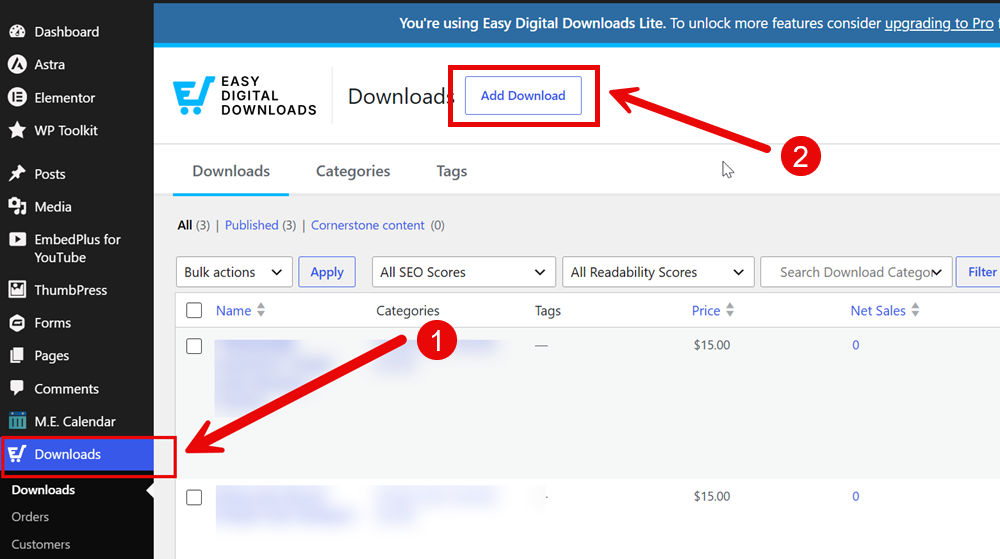
Navigate to the ‘Downloads’ menu item in the Dashboard sidebar and then click ‘Add Download’:
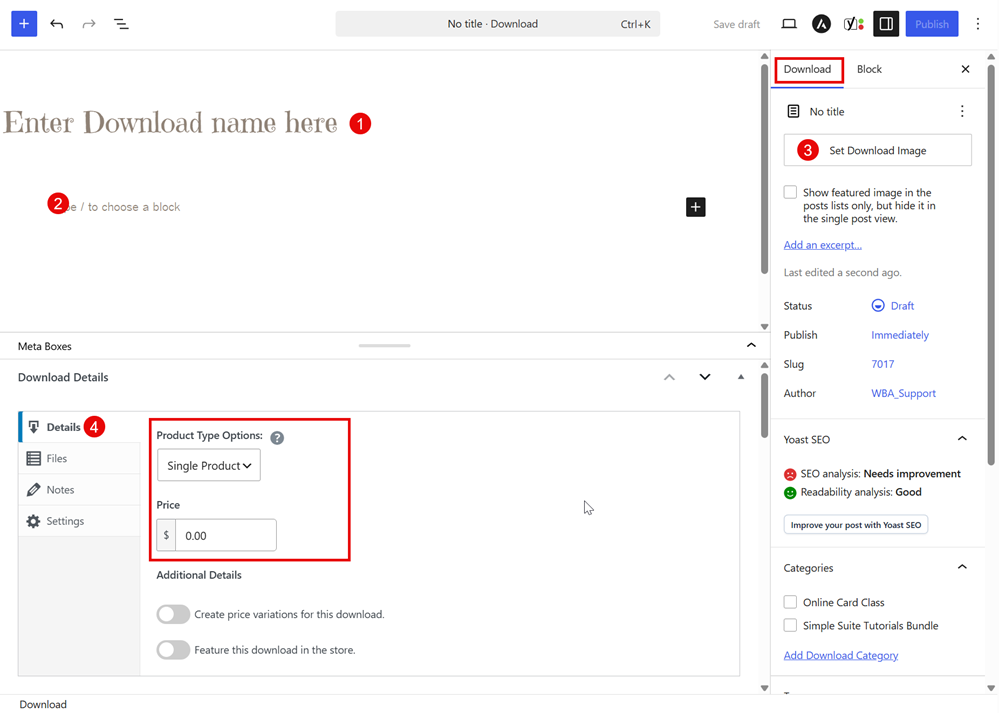
In this view:
- Enter product name here
- Add any additional information of what is included in the download
- Ensuring the ‘Download’ tab is active in the right sidebar and click ‘Set Download Image’
- In the ‘Download Details’ area below, the first option is type of product and price:
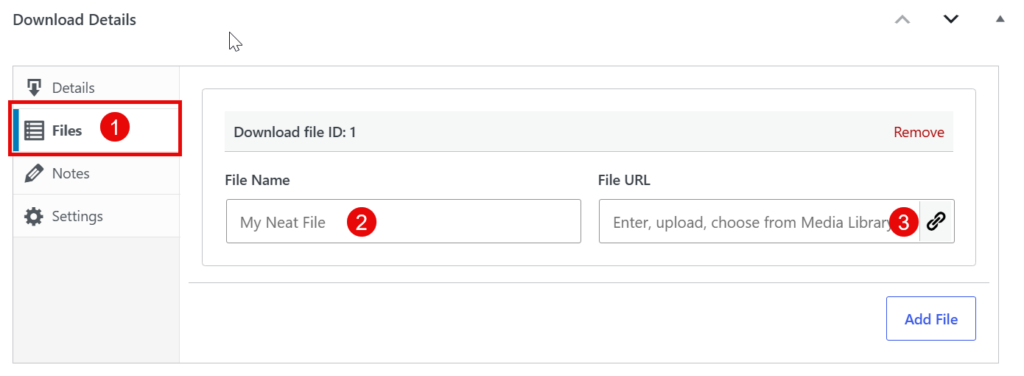
In the next ‘Download Details’ area, click on ‘Files’, name the file (this is the name of the file that will show up in the confirmation/download email) and either click the link to upload the file (or add an existing file from the Media Library) or paste the direct link.
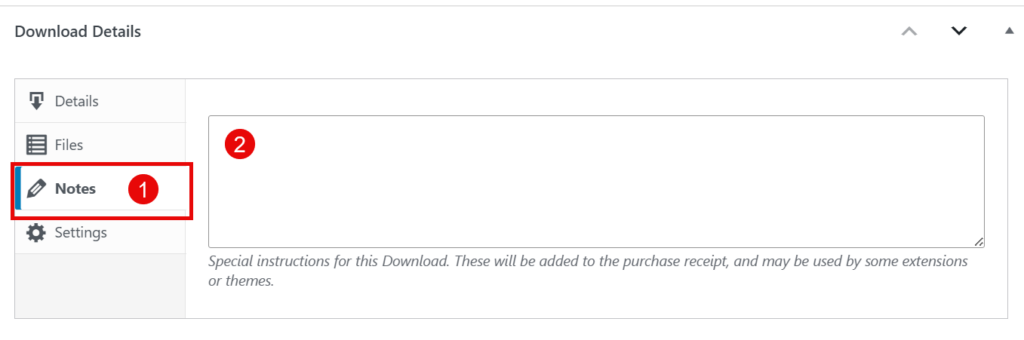
Click on the next section labeled ‘Notes’ and enter any unique information you wish to include in the confirmation/download email. Since the client’s order confirmation/download email is not customizable for each product, this is the opportunity to include something unique to the purchase of this product.
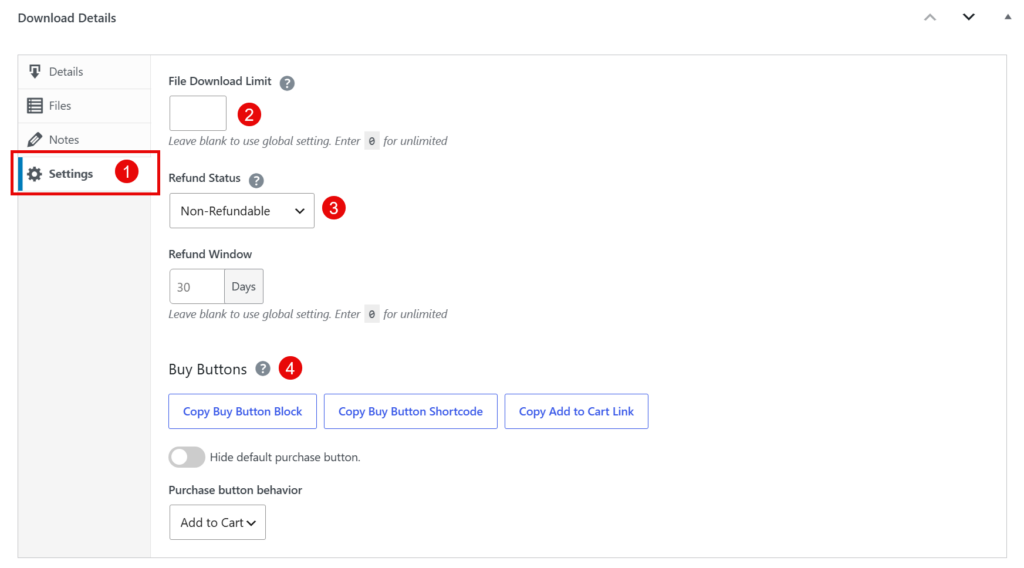
The next option is the ‘Settings’ for the product.
- Click on the ‘Settings’ to activate this menu
- Set a download limit (I suggest 3x), let them contact you if they need to download again. This can mitigate the sharing of the download link.
- Set your refund policy (non-refundable is suggested)
- You can ignore this unless you wish to embed a button in a post or page (it will automatically show up in the Shop page)